In this, we discuss 3 best ways to find your YouTube tags easy way. There has a lot of ways to find your YouTube videos tags, but here the real, easy and genuine way to get your YouTube videos tags. Tags are also most important for your YouTube videos rank. You mostly use long tail tags mean mostly use your YouTube videos tag session long tail keywords it is the best ways to rank your YouTube videos. In this article, we discuss for Display planner, the better way to web and tube buddy. In brief, we discuss what is the 3 best ways to find your YouTube tags about these:-

Way 1. You can mostly use keyword planner for YouTube videos searches but keyword planner is useful for blog/website. You must use Display planner for finding your YouTube videos tags. Display planner is mainly used for how many banned impression/searches/Placements/topics that you can make you’re your YouTube videos tags. On YouTube videos mostly ads are shown in banner ads so you must use display planner.

Click on Go→Display planner
Way 2. Second Ways to find your tags is betterwaytoweb.com. It is also a free tool to find your YouTube tags. When you find for particular title or keywords for your YouTube videos use the search box you see-get results and select which tags are relevant to your YouTube videos.

Click on Go→betterway2web
3 Best Ways to Find Your YouTube Tags
In this blog, we discuss for blogger Seo tips and tricks for free. Many of the people initially use blogger. Blogger is the free tool provided by Google. You can easy to use this Google tool and blogger BlogSpot Seo tips inside your blog. Make Sure your blogger BlogSpot is Seo friendly and increase your visibility in Google organic search result, here we discuss some on-page Seo tips and tricks for blogger BlogSpot.

Follow these steps:-
Step 1:- Meta tags or Meta descriptions define your blog is for. You must write at least 150 words your blog is on which topic.

Also Read: - Blogger BlogSpot Seo tips
Step 2:-Custom page is not found or error like 404/page not found and many errors you see when you reach final URL destination redirect it to your blog home page.

Copy and paste in Blogger Blog Search Preferances
<style type="text/css"> #error-404 { border: 20px solid #1563ea; border-radius: 240px 240px 240px 240px; height: 240px; margin: 0 auto 40px; text-align: center; transition: all 0.8s ease 0s; width: 240px; } #error-404:hover { border-color: #333; } #error-404 span { color: #FA4C29; font-size: 100px; font-weight: bold; line-height: 240px; } .large-heading { font-size: 48px; line-height: 1.2em; } .light-heading { font-weight: 400; } .status-msg-bg { background-color: transparent; } .sidebar-wrapper, .page-header { display: none; } .main-wrapper { margin-right: 0; } .outer-wrapper { min-height: 0; } .status-msg-border { border: 0 none; } </style> <div id="error-404"> <span>404</span>
</div> <h2 class="large-heading" style="text-align: center;">Page not found.</h2>
<h3 class="light-heading" style="text-align: center;">Sorry, the page you were looking for on this blog does not exist.<br>You will be redirected shortly to the homepage.</h3>
<script type = "text/javascript">
BSPNF_redirect = setTimeout(function() {
location.pathname= "/"
}, 7000);
</script>
Step 3:-Google Search console or webmaster tool is also free tool provide by Google. It monitors Google search result data for your web properties (Very Useful tool).

Also Read: - How to add social media button in blogger sidebar
Step 4:-Custom robot.txt works your regular posting in your blog crawl by Google. Custom robot.txt that means now you can customize files according to your choice.
Useful Blogger BlogSpot Seo Tips-Robot.txt,Meta tag,Page not found and More
Simple Blogger BlogSpot Best Seo tips | You Must Know|
In this article, we discuss for Blogger BlogSpot SEO Tips very easy way. We write the various blog in blogger, but we forget minor settings inside when we start our blog. In this blog post, we discuss complete on-page SEO or on page optimization full Guide for beginners. I will be sharing some cool and you must know BlogSpot SEO tips, these tips help you to get better ranking. Blogger BlogSpot tool is the free and easy platform by Google.

Follow these steps:-
Step 1:- You must do proper Title what the visitor find for clicking on your blog title by Google search and reached on your site.

Simple Blogger BlogSpot Best Seo tips | You Must Know|
How to Search Long Tail Keywords:-In this article we discuss for How to Search Long Tail Keywords Very Easily by free online keyword generator for many search engines like Google, YouTube, Bing, Amazon, AOL and search engines very easy way. This long tail keywords generator is free to use. So without getting any query we directly on topic how to search long tail keyword or find long tail keywords for SEO for free.

Follow these steps:-

How to Search Long Tail Keywords Very Easily | Find Long Tail Keywords for SEO for Free
In this article, we discuss for YouTube intro maker free. In online many of the free intro maker available, but in this we discuss for cool intro maker for YouTube and others. YouTube intro maker is one of the problems for which one is best. Here we discuss one of the free YouTube intro makers or intro YouTube online.


YouTube Intro Maker |Free Intros de YouTube videos |
How to Add Social Media Buttons to Blogger Sidebar


In this, we discuss how to add all social media Button to blogger sidebar with the name in blogger blog. Many of the blogger templates or themes do not show any social network buttons like Instagram, YouTube, Google plus, Facebook icon png very easiest way. The social share button is very important for any website and blog for expanding your visibility. In this, I’ll show you how to put social media logos with names easily.So without getting query directly jump it into how to add social media button to blogger sidebar.
Follow these steps:-
1. Search all social buttons with the name on Google images and save on your desktop.

2. Set the entire social icon like Facebook, YouTube, Google Plus, Instagram and others with the same dimensions.

3. Go to the new post in blogger section and set any title (no matter) then Save not publish must remember it.

4. Insert all social share buttons into post writing section.

5. Set the social icon vertical or horizontal as you like.

6. Select all social icons with name one by one and link on it and save it again.

7. Go to HTML and copy all HTML code in blogger.

8. After copy HTML code goes to layout section in blogger.

9. Go add Gadget sidebar and paste HTML code on HTML/JavaScript.

10. Paste it into content and make title what you want and then save it.

11. Your [Social media button] is ready testing it.

→ Watch given full videos easy to understand how to add social media icon easily.
Also Search for:-
Hey Guys, I hope you understand How to Add Social Media Buttons to Blogger Sidebar very easy way. If you are really enjoying this don’t forget to appreciate efforts in a comment below. You will not be disappointed, for more information, come again on my blog.
How to Add Social Media Buttons to Blogger Sidebar
Free Ping For Website/Blog | Seo Or Search Engine Submission Tool Online
वैसे तो बहुत सारे Free Directories/URL submission Tool हैं ! जहां हम अलग-अलग websites पर जाकर अपनी वेबसाइट का url submit करतें हैं,लेकिन यह tool main Search Engines पर अलग-अलग जाने की वजह एक ही बार में सभी जेसेकि Google,Bing,Yahoo,AOL,MSN,Altavista and Many More सबमिट करता है ! उदहारण के तोर पर मैंने यह बताया है की url submit कैसे करतें हैं !


इस तरह से आप अपनी Best and Free website का url अलग-अलग submit करने की वजह एक ही बार submit कर लेते हैं ! Free url submission SEO के लिए और main Search Engines पर अपना url आसानी से डाल सकतें हैं और अपने Blog या website की Visibility बड़ा सकतें हैं ! अगर पोस्ट अच्छा लगे तो नीचे कमेंट बॉक्स में जरूर लिखें !
वैसे तो बहुत सारे Free Directories/URL submission Tool हैं ! जहां हम अलग-अलग websites पर जाकर अपनी वेबसाइट का url submit करतें हैं,लेकिन यह tool main Search Engines पर अलग-अलग जाने की वजह एक ही बार में सभी जेसेकि Google,Bing,Yahoo,AOL,MSN,Altavista and Many More सबमिट करता है ! उदहारण के तोर पर मैंने यह बताया है की url submit कैसे करतें हैं !
Entireweb पर जायें
1. अपनी वेबसाइट का url डालें+ Email-ID

2. उसके बाद नया पेज खुलेगा(Free+Paid)

3. फ्री आप्शन पर क्लिक करें

4. आपकी website का url submit हो जायेगा !
Watch This Video
Watch This Video
इस तरह से आप अपनी Best and Free website का url अलग-अलग submit करने की वजह एक ही बार submit कर लेते हैं ! Free url submission SEO के लिए और main Search Engines पर अपना url आसानी से डाल सकतें हैं और अपने Blog या website की Visibility बड़ा सकतें हैं ! अगर पोस्ट अच्छा लगे तो नीचे कमेंट बॉक्स में जरूर लिखें !
In this way
you can ping your website/Blog URL in various search engines, and your website show on other search engines. I hope you understand "Free Ping For Website/Blog | Seo Or Search Engine Submission Tool Online"
Also Search For
Free Ping For Website/Blog | Seo Or Search Engine Submission Tool Online

We are very disturbed to find and make for our own website or blog HD image, Youtube Thumbnails, Social media posts like [Facebook Post, Twitter, Pinterest and other social media platforms. Here the Solution to make that kind of images. It's best and easy way to create and download your own Copyright free HD images.
How to Create Your Own Copyright free Images for Website,Blog,YouTube and Social Media Networks?
How to connect Android mobile internet to PC/Laptop
Here we discuss How to connect android mobile to pc. Many of the sources to connect mobile to PC, connected by USB cable and many more, but here the solution you can connect mobile to PC or laptop very easy way. In this way, you not only connect your phone to laptop miles of distance. So without getting query directly on topic how to connect android mobile to PC or laptop.


Here we discuss How to connect android mobile to pc. Many of the sources to connect mobile to PC, connected by USB cable and many more, but here the solution you can connect mobile to PC or laptop very easy way. In this way, you not only connect your phone to laptop miles of distance. So without getting query directly on topic how to connect android mobile to PC or laptop.
Follow these steps:-
1. Search in Google for team viewer according to your window.

2. Hit the download button.

3. Then search on your mobile quick support team viewer for Android mobile and download.

4. When you download this app on your mobile then open and show numeric digits.

Also Read ⇒How to apply online Passport Application in India.
5. Enter these digits on your PC/laptop team viewer a then hit connect blue button.

6. After that you show on your mobile deny and allow, you go with allow for mobile internet connection to PC/laptop.
7. And then you see connect mobile to PC very easy way.

8. After connected you see your left-hand side you chat for any query from anywhere.

That’s it very easy solution to connect mobile internet to pc/laptop. This team viewer is you can use from anywhere you set one person query easy solution. Also, you can chat with your query from another person you connected.
How to connect Android mobile internet to PC/Laptop
How To Apply Online Passport Application in India Step by Step in Hindi/Urdu. In this videos we learn for how to apply for online passport application in Hindi tutorials, Here the solution how to apply for your own passport application 2017 step by step follow very carefully below steps:-
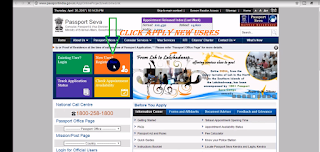
1) Login to Passport Seva online portal (Click Here to go Home page)

2) Click to apply for fresh or Re-issue passport as you see on left of yours.
3) Fill the required field on an online Passport application in India .(as you see below on videos)
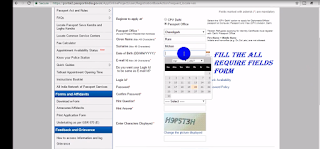
4) Click the "Pay and schedule" screen to schedule an appointment.
1) Login to Passport Seva online portal (Click Here to go Home page)

2) Click to apply for fresh or Re-issue passport as you see on left of yours.

3) Fill the required field on an online Passport application in India .(as you see below on videos)

4) Click the "Pay and schedule" screen to schedule an appointment.
How To Apply Online Passport Application in India Step by Step in Hindi/Urdu.

Firstly why YouTube account suspended/terminated:-
1) We do not follow proper YouTube Guidelines.
2) Copyrighted content.
3) Nudity,sexual,harmful,violent and graphic content.
4) Harassment, intimidation and reveling content in your YouTube Videos.
5)Spam, misleading and scamming content.
Meaning of Spam and Protect Your YouTube Channel From Comment Spamming?How to Block Spam Comment on YouTube?
In the above, you must remember and also follow if you are a new YouTube uses.If you do not access rather then following YouTube suspended term and condition.
>>>>>Follow these steps when your account show unable to access google product:-

1) When you sign in YouTube account, show unable to access fill this form.

2) After filling all correct information click the submit button and also find Google Plus email.


3) The property follows the above video information, how to find the URL of the suspended YouTube account.

How To Recover Terminated | Suspended | Banned | YouTube Channel | Get Back Same YouTube Account |
How to create WordPress Social Media Sharing Buttons for your website or blog Post ?
How to create WordPress Social Media Sharing Buttons for your website or blog Post ?
Subscribe to:
Posts
(
Atom
)


